
 Čeština
  Dansk
Dansk  Deutsch
  English
  English (US)
  Español
  Français
  Italiano
  Magyar
  Nederlands
  Norsk
Norsk  Polski
  Português (BR)
  Română
  Suomi
Suomi  Svenska
  Türkçe
  Ελληνικά
  Български
  Русский
  Українська
  ไทย
ไทย  日本語
日本語  한국어
한국어 
Moving from LastPass
to Steganos
Password Manager
Export your vault, import it in a single step, then securely delete the export file:
that way every login comes with you without retyping a single password.
If you are leaving LastPass, you don't have to retype your logins. Steganos Password Manager reads a LastPass export directly – with user names, passwords, addresses, notes and even the folders LastPass calls "groups." Plan on five to ten minutes.
You need two things: access to your LastPass vault and Steganos Password Manager on your Windows PC. If you don't have it yet, you can try it free for 30 days with no subscription – the import works exactly the same in the trial version.
Step 1: Export your LastPass vault as a CSV file
Sign in to your LastPass account and open the export – it's in the advanced account settings under "Export." LastPass asks for your master password once more and then saves a CSV file on your computer.
Two things matter at this point:
- The export file is unencrypted plain text. Anyone who can open it reads every one of your passwords. So don't put it in a cloud folder, don't send it by email, and don't leave it lying around after the import – how to get rid of it is explained further down.
- Don't open and save the file in Excel. When saving, Excel likes to write semicolons instead of commas as the separator and changes the header row – after that the import no longer recognizes the format.
The first line of the file is the header row, and that's what Password Manager uses to recognize the format. In a current LastPass export it looks like this:
url,username,password,totp,extra,name,grouping,fav
Older exports without the totp column are read as well. If something else is there, the format is wrong – in that case export again instead of repairing the file by hand.
Step 2: Read the export into Password Manager
- Open Steganos Password Manager and unlock the keychain the entries are meant for. If you don't have one yet, create it first.
- In the File menu open Import and choose LastPass CSV... – not one of the browser entries, those are for Chrome, Edge and Firefox.
- Select the file you just exported. Password Manager reports "Import successful" and your entries show up in the list.
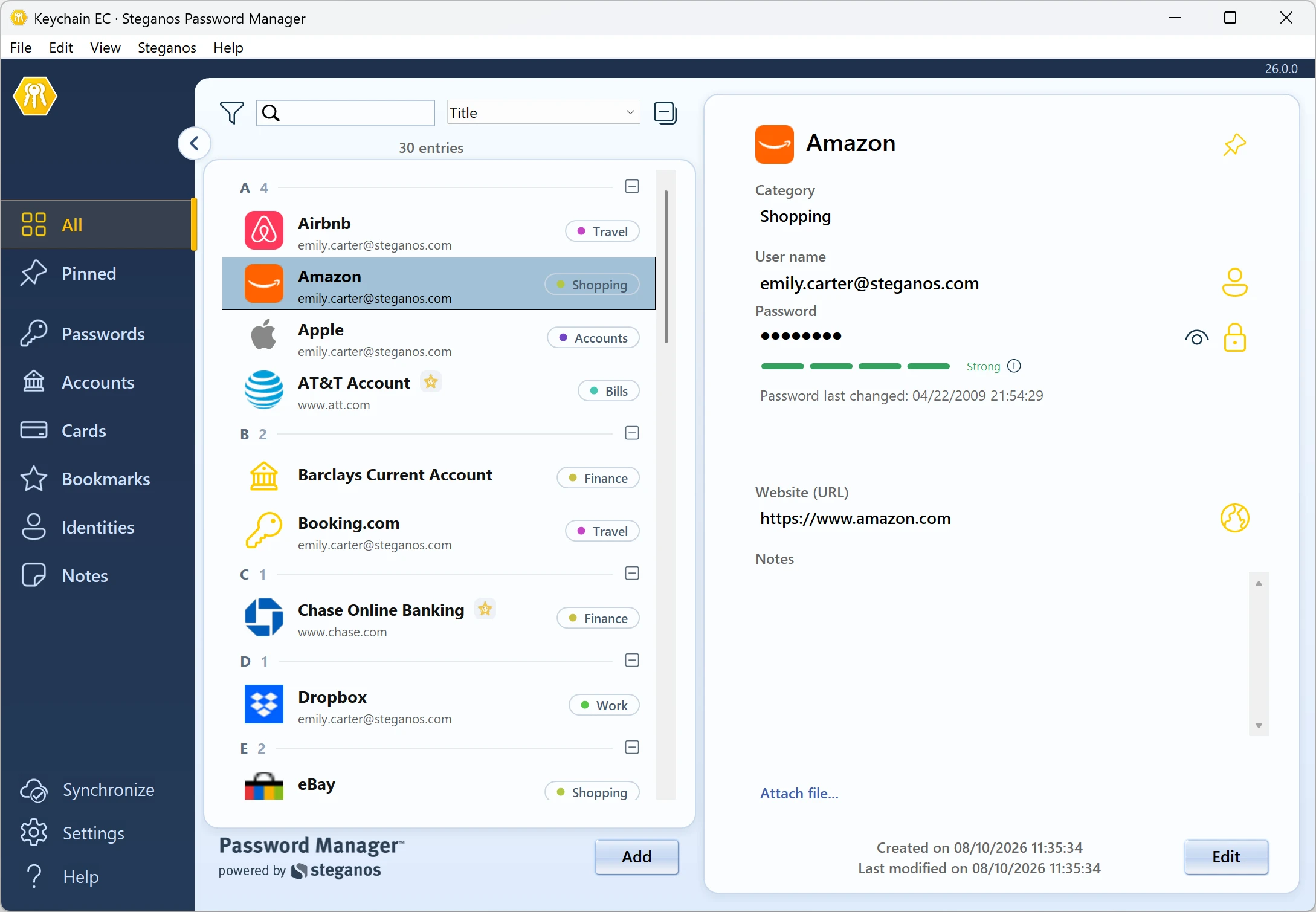
You can repeat the import later if you want to bring more entries over. Entries that are already there are kept, so check afterward whether anything ended up twice.
What gets carried over
The import maps the columns of the LastPass file onto the fields in Password Manager:
- name becomes the title of the entry
- username and password become the user name and the password
- url becomes the website of the entry
- extra becomes the note
- grouping – the LastPass folder – becomes the category
- fav carries the favorite marker over, totp the field for one-time passwords
What LastPass doesn't export can't come along: file attachments and the permissions of shared folders. You'll have to set up both again.
Afterward: securely delete the export file
The CSV file holds every one of your passwords in plain text. Dragging it to the Recycle Bin isn't enough – the data stays on the hard drive afterward and can be recovered with simple tools. Our guide "Why the Recycle Bin is not enough to securely delete your data" explains in detail why that is.
So delete the file with a tool that really overwrites it. Steganos Shredder does exactly that and is included in Steganos Privacy Suite and in Steganos Data Safe. Remember the copy in your Downloads folder, too, and any cloud folder that may be syncing.
If the import doesn't go through
If Password Manager reports "The data is not in the correct format.", the header row doesn't match. Open the file in Notepad (not in Excel) and compare the first line with the one printed above. The most common causes: the file was saved in a spreadsheet program in the meantime, or it isn't a LastPass export at all but one from another program – there are separate entries for 1Password and KeePass in the same menu.
If it reports instead that no entries could be found, the file is built correctly but holds no rows apart from the header. That happens when the wrong vault was selected during the export.
 Steganos®Password Manager
A strong password is the start. Remembering all of them is the real task.
- ✓All your passwords safe in one place
- ✓Automatic filling in browsers and apps
- ✓Access from PC, smartphone and tablet
- ✓256-bit AES encryption
- ✓30 days unrestricted, no subscription
More Tips & Hints
Moving from 1Password to Steganos Password Manager
A 1Password export brings titles, addresses, notes and tags with it.
Which header row the import expects and what gets left behind.
Moving from KeePass to Steganos Password Manager
KeePass and KeePassXC export differently.
Which of the two CSV formats the import reads – and why the groups don't come along.

The most common mistakes when using passwords and how to avoid them
Too short, reused, too easy to guess: the typical mistakes people make with passwords and what to do instead.
Weiterlesen →
Moving from 1Password
to Steganos
Password Manager
The export brings titles, addresses, notes and tags with it.
What you have to click – and what the import can't carry over.
Steganos Password Manager reads 1Password exports directly, so there's nothing to retype: titles, addresses, user names, passwords, notes and tags all come over in one pass. Plan on about five to ten minutes for the whole move.
What you need is access to your 1Password account and Steganos Password Manager on your Windows PC. If you don't have it yet: try it free for 30 days with no subscription – the import works exactly the same in the trial version.
Step 1: Export from 1Password as CSV
The export runs in the 1Password application for Windows or Mac, not in the browser extension. There you pick the vault you want to take with you and export it in CSV format. 1Password asks for your master password to confirm.
Two notes on this:
- The export file is unencrypted plain text. Anyone who opens it sees every password. So it has no business in a cloud folder or an email attachment – and it must not be left lying around after the import.
- Export one vault at a time. If you have several vaults you'll get several files and import them one by one. That's the simplest way to keep them apart.
Password Manager recognizes the format from the first line of the file. In the current 1Password versions it looks like this:
Title,Url,Username,Password,OTPAuth,Favorite,Archived,Tags,Notes
Exports from older versions with the header row title,notes,username,password,url are read as well – but then only these five fields come over.
Step 2: Read the export into Password Manager
- Open Steganos Password Manager and unlock the keychain the entries are meant for. If you don't have one yet, create it first.
- In the File menu open Import and choose 1Password Database... – even if your export file ends in .csv. That's just what the entry is called; it reads exactly these CSV files.
- Select the file. Password Manager reports "Import successful" and the entries show up in the list.
What gets carried over
From a current 1Password export the import maps as follows:
- Title becomes the title of the entry
- Username and Password become the user name and the password
- Url becomes the website
- Notes becomes the note – multi-line notes keep their line breaks
- Tags come over as tags, OTPAuth lands in the field for one-time passwords
- Favorite carries the favorite marker over
Two things are worth knowing beforehand. First: the Archived column isn't evaluated – archived entries arrive as ordinary entries. If you'd rather not bring your archive along, it's better to clear it out before the export. Second: what 1Password doesn't export can't arrive either – documents and file attachments have to be moved by hand.
Afterward: securely delete the export file
All of your passwords sit in that CSV file in plain text. Dragging it to the Recycle Bin isn't enough: the data stays on the hard drive and can be recovered with simple tools. The background is in our guide "Why the Recycle Bin is not enough to securely delete your data".
To delete it, use a tool that overwrites the file. Steganos Shredder does that and is included in Steganos Privacy Suite and in Steganos Data Safe. Remember copies in your Downloads folder and in any cloud folder that is syncing.
If the import doesn't go through
The message "The data is not in the correct format." means the header row doesn't match. Open the file in Notepad – not in Excel, which changes the separator when saving – and compare the first line with the two versions printed above. If you accidentally exported 1Password's own .1pux format: the import can't read that, so export again as CSV.
And if you're actually coming from another program: there are separate entries for LastPass and KeePass in the same menu, plus ones for Chrome, Edge and Firefox.
Steganos®Password Manager
A strong password is the start. Remembering all of them is the real task.
- ✓All your passwords safe in one place
- ✓Automatic filling in browsers and apps
- ✓Access from PC, smartphone and tablet
- ✓256-bit AES encryption
- ✓30 days unrestricted, no subscription
More Tips & Hints
Moving from LastPass to Steganos Password Manager
A LastPass export even takes the folders with it.
Which header row the import expects and how the groups become categories.
Moving from KeePass to Steganos Password Manager
KeePass and KeePassXC export differently.
Which of the two CSV formats the import reads – and why the groups don't come along.

Encryption and strong passwords
Strong passwords and encryption belong together. How to protect accounts and files effectively without losing track of them.
Weiterlesen →
Moving from KeePass
to Steganos
Password Manager
KeePass and KeePassXC export differently.
Which of the two CSV formats the import reads, and what you redo by hand afterward.
KeePass is dependable and free – but a lot of it only comes together through extensions and apps from other providers: the browser connection, syncing between several devices, use on a smartphone. If you'd rather have that from a single source, you don't have to retype your entries: Steganos Password Manager reads KeePass exports directly.
One point up front, so it doesn't catch you off guard: The groups from KeePass don't come along. Every entry lands in the keychain with no folder assignment. How to handle that is explained further down.
Step 1: Export the right CSV format
The import understands two header rows, and which one you get depends on the program you work with.
- KeePass 2 (the original by Dominik Reichl): Export via File → Export into the format CSV (KeePass 1.x). The file then begins with
"Account","Login Name","Password","Web Site","Comments" - KeePassXC: Its own CSV export works unchanged. Its header row reads
Group,Title,Username,Password,URL,Notes,TOTP,Icon,Last Modified,Created
– with or without quotation marks, both are read.
The import can't read other output formats: neither the encrypted .kdbx database file itself nor the XML output from KeePass. It has to be one of the two CSV versions.
And as with every export: The file is unencrypted plain text. It holds every one of your passwords in readable form. Don't put it in a cloud folder, don't send it, and don't open and save it in Excel – that changes the separator and makes the file useless for the import.
Step 2: Read the export into Password Manager
- Open Steganos Password Manager and unlock the keychain the entries are meant for. If you don't have one yet, create it first.
- In the File menu open Import and choose Keepass Database... The entry reads both CSV versions named above; you don't have to say which one it is.
- Select the file. Password Manager reports "Import successful" and the entries show up in the list.
What gets carried over – and what doesn't
From a KeePassXC export these come over:
- Title as the title of the entry
- Username and Password as the user name and the password
- URL as the website
- Notes as the note – multi-line notes keep their line breaks
- TOTP in the field for one-time passwords
From the KeePass 1.x format the title, user name, password, website and comment come over – there's no TOTP field there.
In both cases the groups aren't carried over, and neither are icons or the timestamps for modification and creation. For the folder structure you have two options:
- Export and import group by group. You export each group on its own and then assign the matching category in Password Manager for each pass. That's the clean way if your structure matters to you.
- Sort them afterward. Categories can be created and assigned right in the entry list in Password Manager – with a manageable number of entries that's quicker than several exports.
File attachments from KeePass don't come along either: the CSV export doesn't contain them at all.
Afterward: securely delete the export file
You now have a plain-text file with all your passwords on the drive. Dragging it to the Recycle Bin isn't enough – the data stays readable until the space is overwritten. Our guide "Why the Recycle Bin is not enough to securely delete your data" explains why that is.
Delete the file with a tool that overwrites it. Steganos Shredder does that and is included in Steganos Privacy Suite and in Steganos Data Safe. If you exported group by group you have several files – all of them, please.
If the import doesn't go through
If Password Manager reports "The data is not in the correct format.", the header row doesn't match. Open the file in Notepad and compare the first line with the two printed above. The most common case with KeePass 2: it wasn't the CSV (KeePass 1.x) format but one of the other output formats.
If the message says no entries could be found, the file is built correctly but holds nothing but the header row – in that case the wrong group, or an empty one, was selected during the export.
Steganos®Password Manager
A strong password is the start. Remembering all of them is the real task.
- ✓All your passwords safe in one place
- ✓Automatic filling in browsers and apps
- ✓Access from PC, smartphone and tablet
- ✓256-bit AES encryption
- ✓30 days unrestricted, no subscription
More Tips & Hints
Moving from LastPass to Steganos Password Manager
A LastPass export even takes the folders with it.
Which header row the import expects and how the groups become categories.
Moving from 1Password to Steganos Password Manager
A 1Password export brings titles, addresses, notes and tags with it.
Which header row the import expects and what gets left behind.
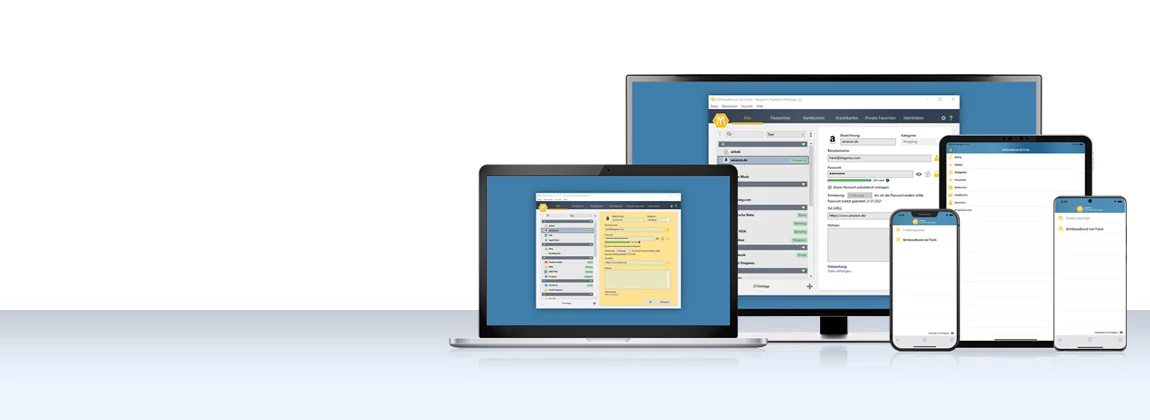
How to use the Password Manager on iOS and Android devices
Manage passwords securely on your phone and have them filled in automatically – setup on iPhone, iPad and Android devices.
Weiterlesen →The Backup Solution for Your PC!
Nero BackItUp creates your backup quickly and easily – to an external hard drive, a USB drive, a NAS system or the cloud. Reliable protection for your irreplaceable data: encrypted, compressed and fully automatic if you want.
Key Features at a Glance
Full Automation of Your Backups
Start your backup daily, weekly, monthly – or whenever you want! Just set a time and date. You can even set up a continuous backup that runs fully automatically in the background.
Multiple Targets
Back up your data locally to an additional hard drive, an external USB drive or a NAS system. Cloud backups are also supported – for example with OneDrive or Google Drive.
Version Management
Nero BackItUp keeps older versions of your files. If a file is changed, damaged or accidentally deleted, you can restore previous versions at any time with just a few clicks.
Encryption and Compression
Your backups are protected with hardware-accelerated 256-bit AES encryption and stored space-efficiently thanks to a smart compression algorithm.
Nero BackItUp 2026:
The Backup Solution for Your PC!
Reliable backups in just a few clicks
✓ Automatic backups on schedule
✓ Hard drive, USB, NAS & cloud as targets
✓ 256-bit AES encrypted & compressed
What are you waiting for? Save $15 now:
$49.95
$34.95





Free Up Space on Your PC!
Duplicate files take up valuable storage space and clutter your system.
Nero Duplicate Manager reliably finds identical and similar files and helps you remove them safely.
Regain order and free up storage space in just a few clicks.
Key Features at a Glance
Find Duplicates Instantly
Nero Duplicate Manager scans your PC for identical files – whether documents, music, videos or images.
Detect Similar Images
Thanks to intelligent image analysis, the software also detects similar photos – even across different formats and resolutions.
Free Up Storage Space
Remove unnecessary duplicates in just a few clicks and regain valuable storage space on your system.
Stay in Full Control
You decide which files to delete. Nero Duplicate Manager presents all results clearly and ensures maximum safety.
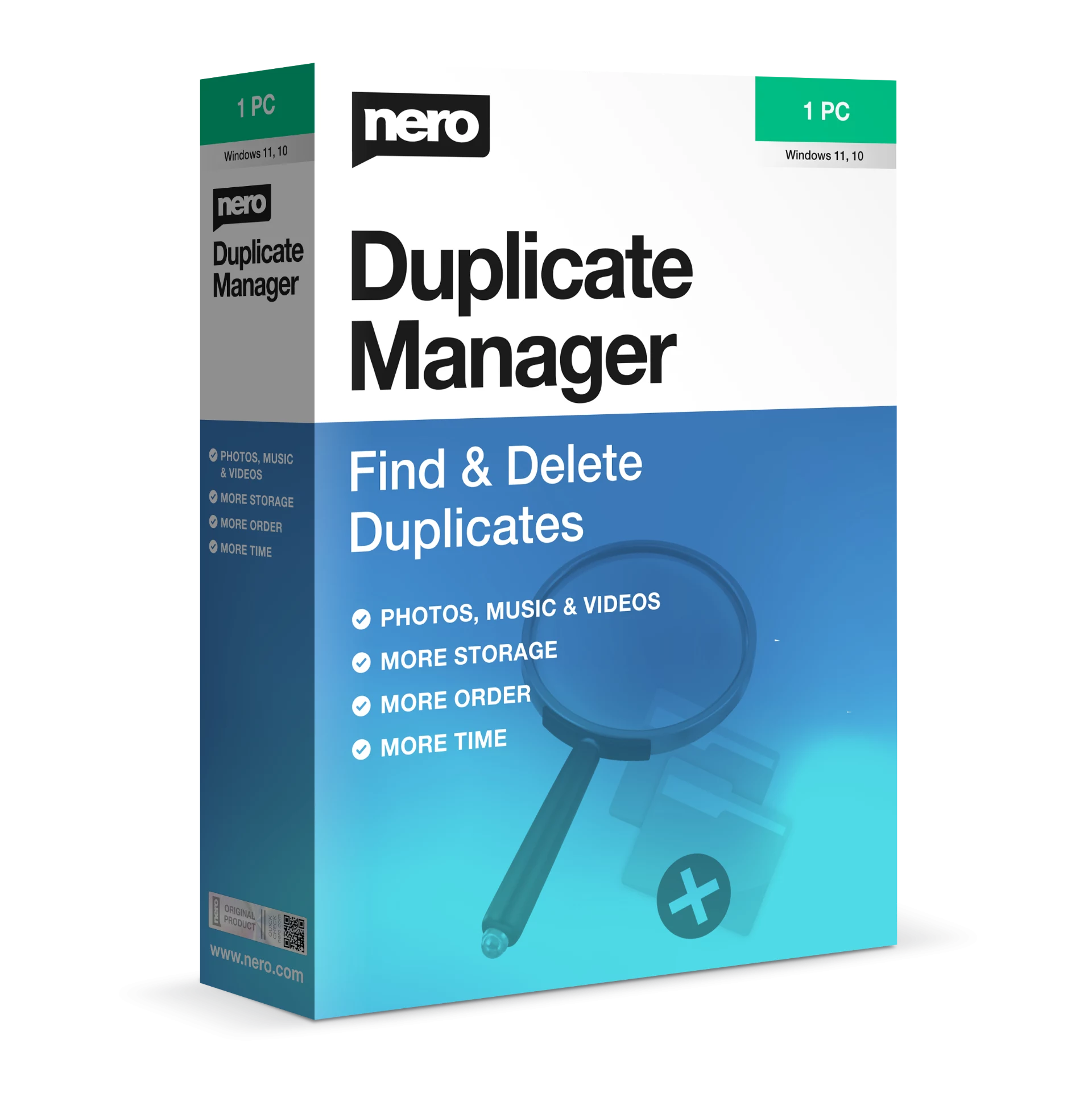
Nero Duplicate Manager:
Free Up Space on Your PC!
More storage space in just a few clicks
✓ Quickly find duplicate files
✓ Automatically detect similar photos
✓ Free up storage easily and safely
What are you waiting for? Save $10 now:
$39.99
$29.99