
 Čeština
  Dansk
Dansk  Deutsch
  English
  English (US)
  Español
  Français
  Italiano
  Magyar
  Nederlands
  Norsk
Norsk  Polski
  Português
  Português (BR)
  Română
  Suomi
Suomi  Svenska
  Tiếng Việt
  Türkçe
  Ελληνικά
  Български
  Русский
  Українська
  ไทย
ไทย  日本語
日本語  한국어
한국어  Steganos Password Manager
- Your keychain moves over automatically
- New-generation encryption
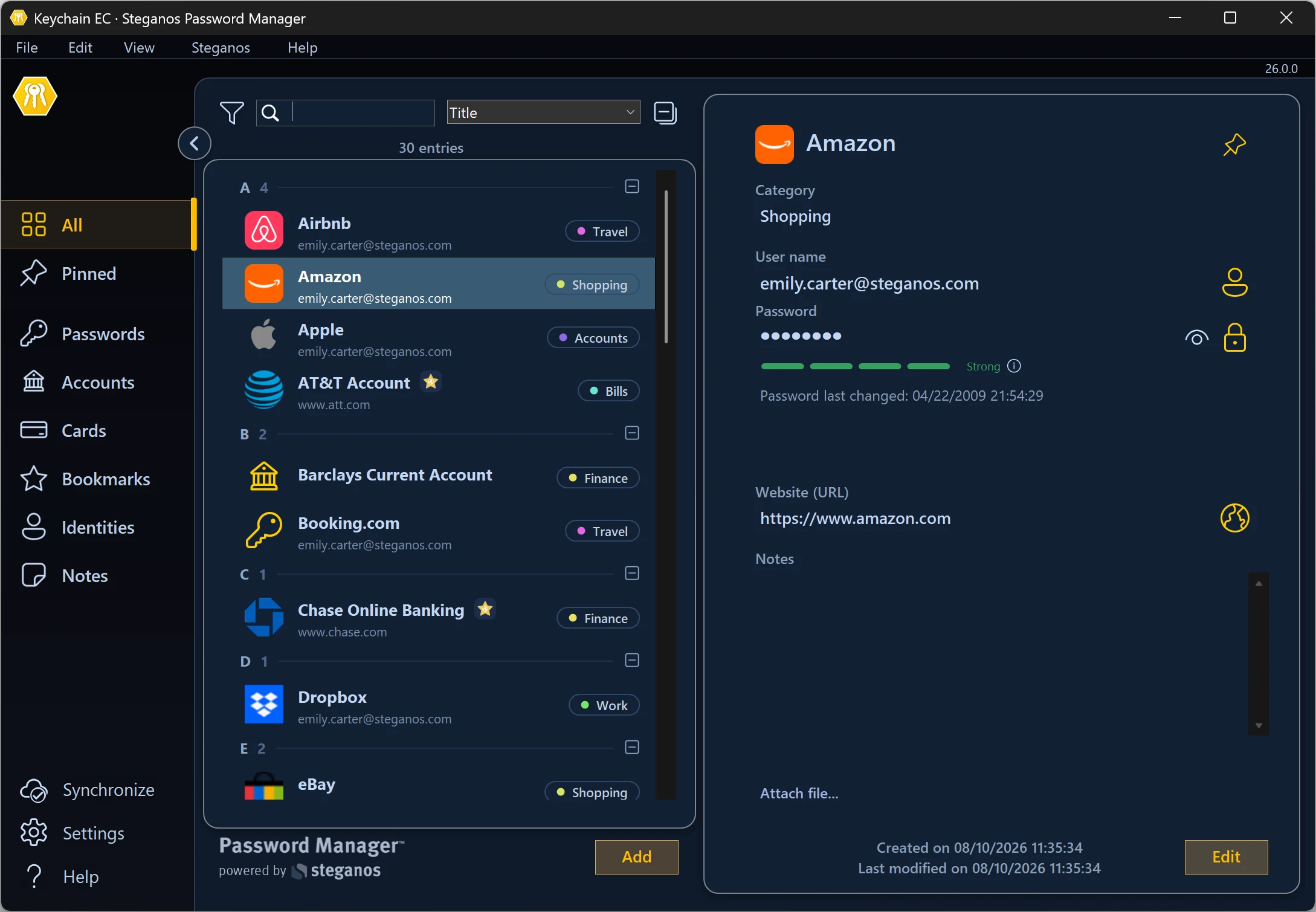
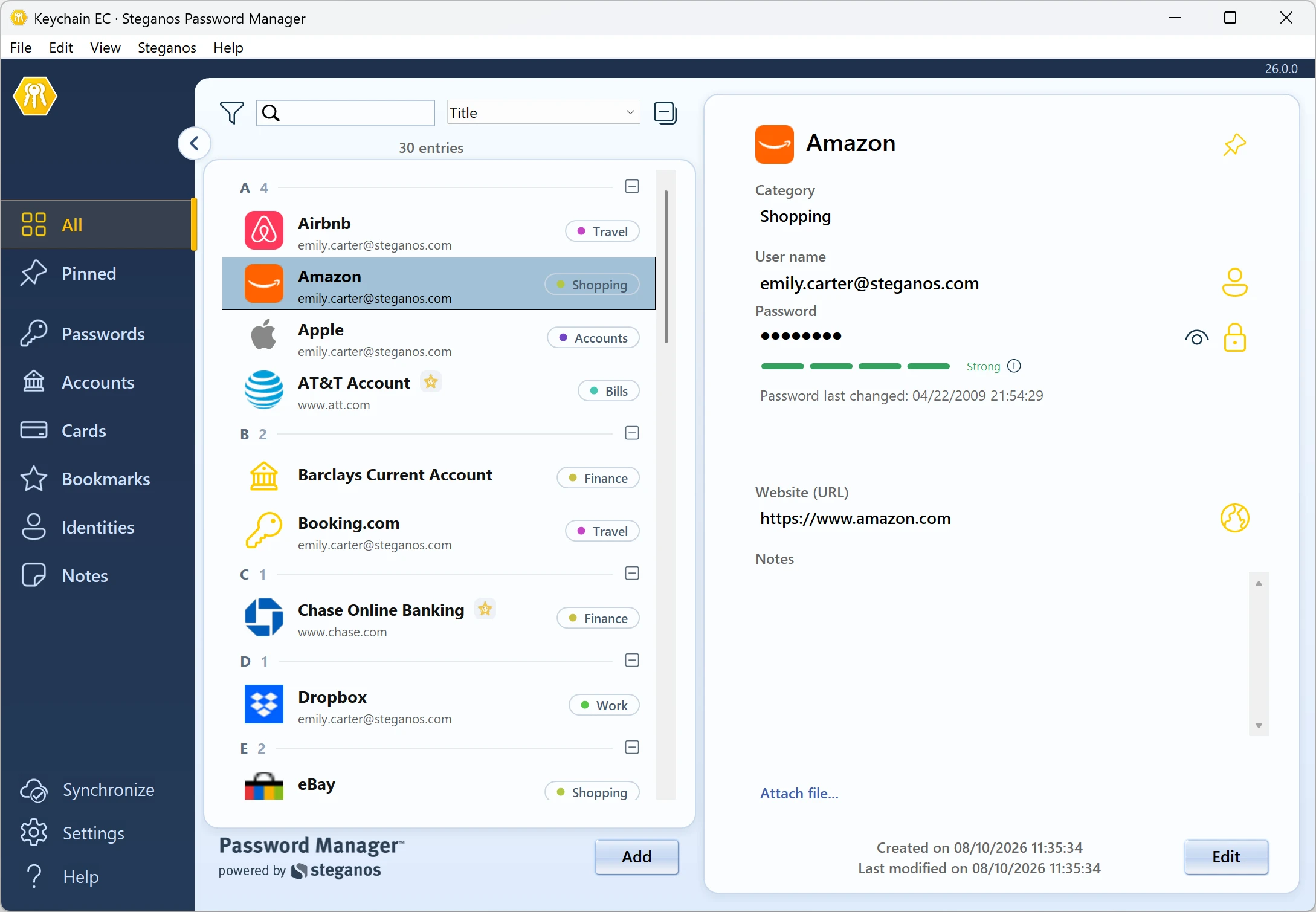
Steganos Password Manager
✓ New-generation encryption



The biggest upgrade in the history of Steganos Password Manager.
Rebuilt from the ground up for Windows, iOS and Android. Your passwords, your keychains, your workflow will carry over in just a few minutes.
Why Password Manager 26 is a fresh installation – not just an update
Password Manager 26 is a completely new application, not a patch on top of the old one. That’s why it won’t install itself automatically: you download it once, open your existing keychain, and it’s converted for you.
The centerpiece of this generation is encryption. Your keychains have always been protected by strong 256-bit AES encryption – that protection is intact and remains trustworthy today. But cryptography is a field that never stands still, and Password Manager 26 adopts a new-generation encryption architecture built to withstand the attacks of the next decades, including dramatically hardened protection against brute-force attempts on your master password.
Converting your keychain to this new format is a one-time step. The guide below walks you through it – on Windows first, then on your smartphone or tablet.
-
Download and install Password Manager 26 on your PC
Password Manager 26 installs as a separate application, you don’t need to uninstall anything first.
-
Start Password Manager 26 and open your default keychain
Open the new app and unlock your keychain with your master password as usual. Your keychain is automatically converted to the new encryption format – a one-time step. Your entries, categories and settings come along; nothing to re-enter.
From this point on, work exclusively in Password Manager 26: the conversion is one-way, and changes are not synced back to the old version.
-
Connect your cloud provider
If you sync your keychain via Dropbox, OneDrive, Google Drive, MagentaCLOUD or another cloud service, reconnect it now so your devices stay in sync.
-
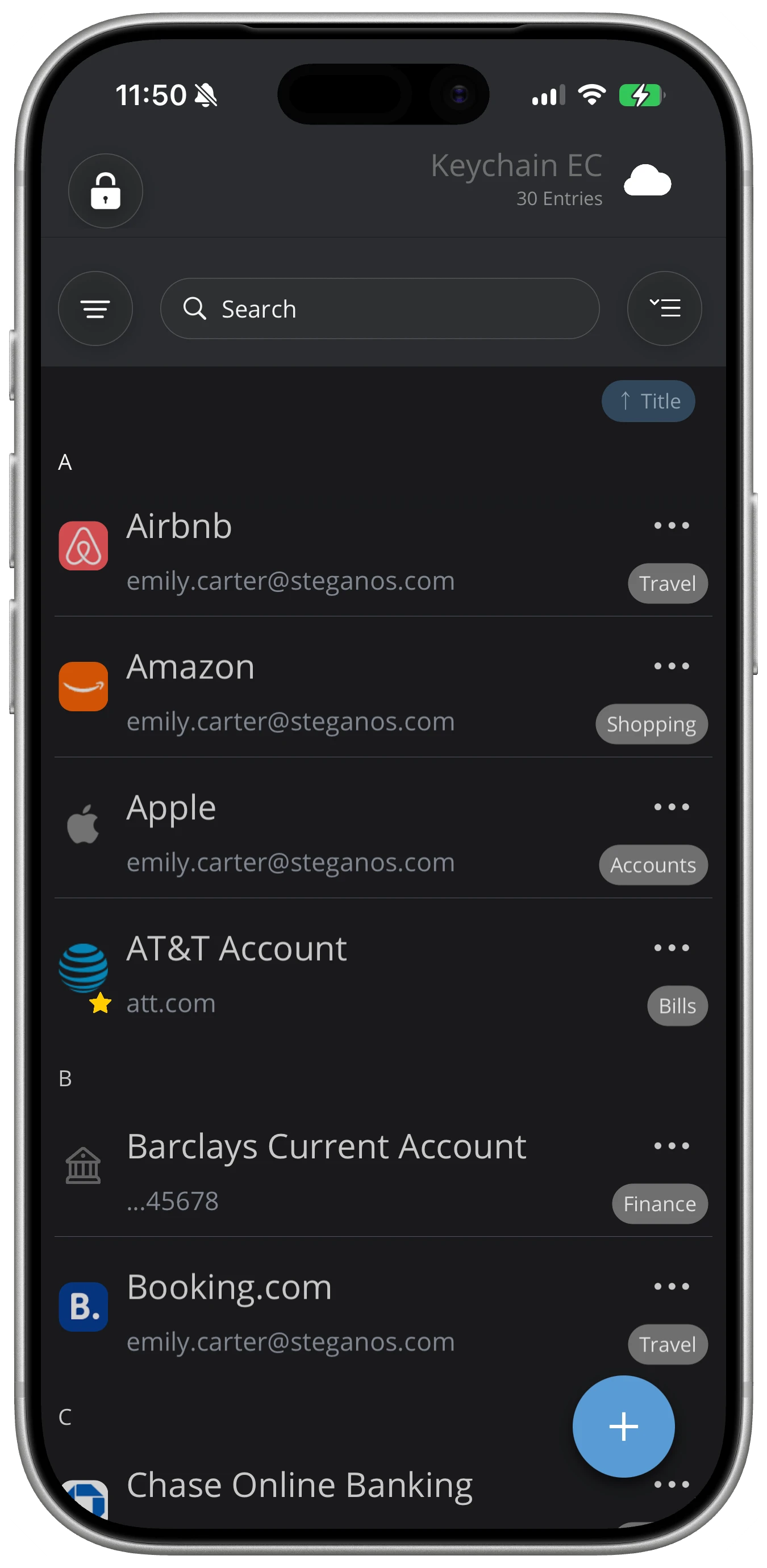
Install Password Manager 26 on your smartphone

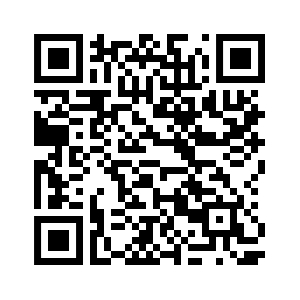

The mobile apps have been rebuilt as well, and remain free to use with your licence. They’re a massive upgrade in every respect, bringing your smartphone to full feature parity with the Windows version for the first time.
-
Connect your cloud provider on mobile, too
Sign in to the same cloud service on your smartphone and your converted keychain appears automatically.
-
Set up biometric unlock and AutoFill
For the best experience, enable Face ID / fingerprint unlock and activate AutoFill in your phone’s settings. Your passwords are then filled in directly in apps and browsers – without typing your master password every time.
-
Browser extensions update automatically
Your Chrome, Edge and Firefox extensions update themselves to generation 26. No action needed.
-
Do you use more than one keychain?
Convert your additional keychains in Password Manager 26 via File → Start → I already have a Keychain. Each keychain is converted the first time you open it, same one-time step as your default keychain.
Questions or stuck somewhere?
Our support team is happy to help: steganos.com/support