
 Čeština
  Dansk
Dansk  Deutsch
  English
  English (US)
  Español
  Français
  Italiano
  Magyar
  Nederlands
  Norsk
Norsk  Polski
  Português
  Português (BR)
  Română
  Suomi
Suomi  Svenska
  Tiếng Việt
  Türkçe
  Ελληνικά
  Български
  Русский
  Українська
  ไทย
ไทย  日本語
日本語  한국어
한국어 
Moving from KeePass
to Steganos
Password Manager
KeePass and KeePassXC export differently.
Which of the two CSV formats the import reads, and what you redo by hand afterwards.
KeePass is dependable and free of charge – but a good deal of it only comes together through extensions and apps from other providers: the link to the browser, syncing between several devices, use on a smartphone. Anyone who would rather have that from a single source does not have to retype their entries: Steganos Password Manager reads KeePass exports directly.
One point up front, so that it does not catch you out: The groups from KeePass do not come along. Every entry lands in the keychain without a folder assignment. How to handle that is explained further down.
Step 1: Export the right CSV format
The import understands two header rows, and which one you get depends on the program you work with.
- KeePass 2 (the original by Dominik Reichl): Export via File → Export into the format CSV (KeePass 1.x). The file then begins with
"Account","Login Name","Password","Web Site","Comments" - KeePassXC: Its own CSV export fits unchanged. Its header row reads
Group,Title,Username,Password,URL,Notes,TOTP,Icon,Last Modified,Created
– with or without quotation marks, both are read.
Other output formats cannot be read by the import: neither the encrypted .kdbx database file itself nor the XML output from KeePass. It has to be one of the two CSV versions.
And as with every export: The file is unencrypted plain text. It holds every one of your passwords in readable form. Do not put it in a cloud folder, do not send it, and do not open and save it in Excel – that changes the separator and renders the file useless for the import.
Step 2: Read the export into Password Manager
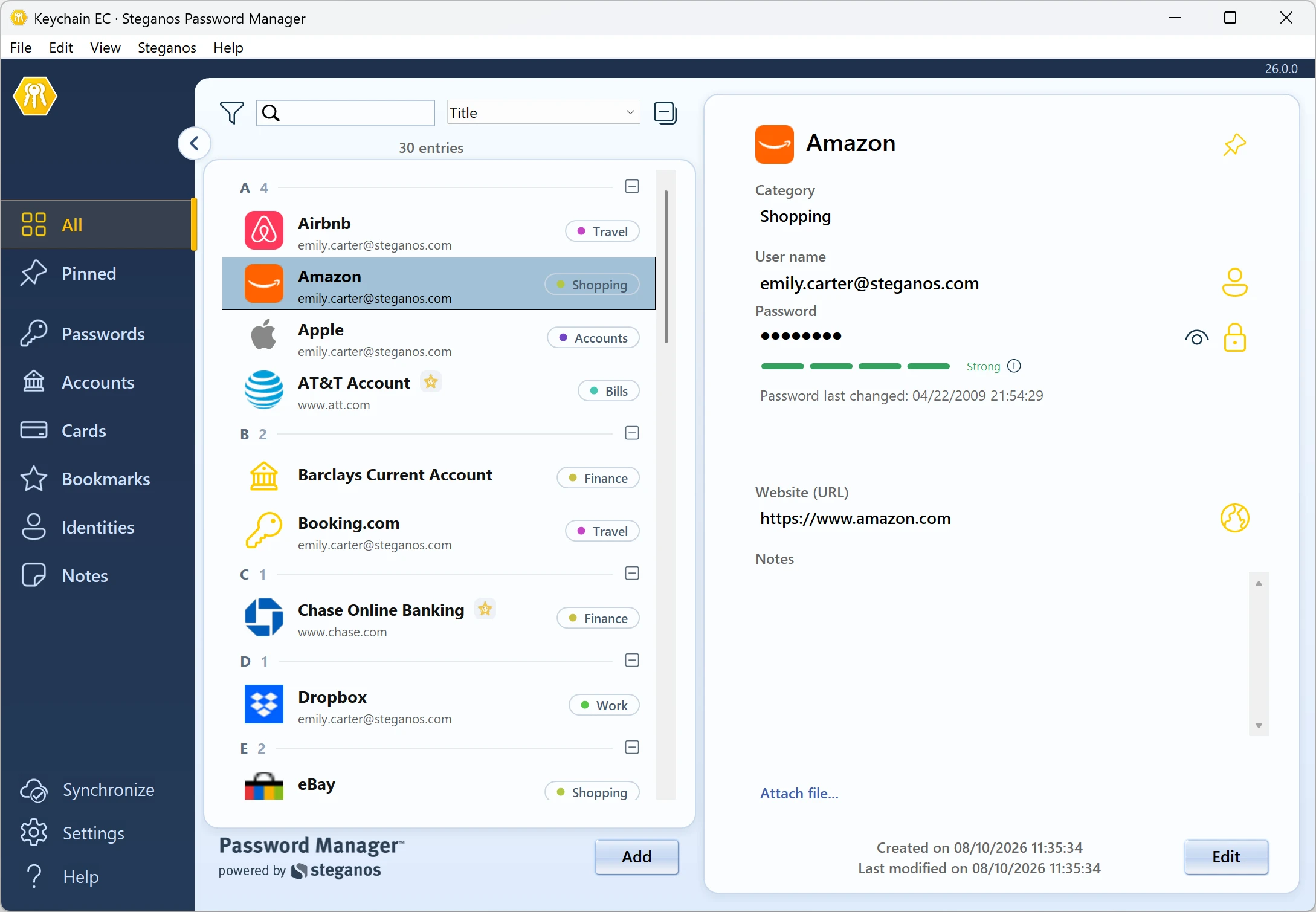
- Open Steganos Password Manager and unlock the keychain the entries are meant for. If you do not have one yet, create it first.
- In the File menu open Import and choose Keepass Database... The entry reads both CSV versions named above; you do not have to say which one it is.
- Select the file. Password Manager reports "Import successful" and the entries appear in the list.
What is carried over – and what is not
From a KeePassXC export these come across:
- Title as the title of the entry
- Username and Password as the user name and the password
- URL as the website
- Notes as the note – multi-line notes keep their line breaks
- TOTP in the field for one-time passwords
From the KeePass 1.x format the title, user name, password, website and comment come across – there is no TOTP field there.
In both cases the groups are not carried over, and neither are icons or the timestamps for modification and creation. For the folder structure you have two options:
- Export and import group by group. You export each group on its own and then assign the matching category in Password Manager for each pass. That is the clean way if your structure matters to you.
- Sort them afterwards. Categories can be created and assigned straight in the entry list of Password Manager – with a manageable number of entries that is quicker than several exports.
File attachments from KeePass do not come along either: the CSV export does not contain them at all.
Afterwards: securely delete the export file
You now have a plain-text file with all your passwords on the disk. Dragging it into the Recycle Bin is not enough – the data stays readable until the space is overwritten. Our guide "Why the Recycle Bin is not enough to securely delete your data" explains why that is.
Delete the file with a tool that overwrites it. Steganos Shredder does that and is included in Steganos Privacy Suite and in Steganos Data Safe. Anyone who exported group by group has several files – all of them, please.
If the import does not go through
If Password Manager reports "The data is not in the correct format.", the header row does not fit. Open the file in Notepad and compare the first line with the two printed above. The most common case with KeePass 2: it was not the CSV (KeePass 1.x) format but one of the other output formats.
If the message says that no entries could be found, the file is built correctly but holds nothing but the header row – in that case the wrong group, or an empty one, was selected during the export.
 Steganos®Password Manager
A strong password is the start. Remembering all of them is the real task.
- ✓All your passwords safe in one place
- ✓Automatic filling in browsers and apps
- ✓Access from PC, smartphone and tablet
- ✓256-bit AES encryption
- ✓30 days unrestricted, no subscription
More Tips & Hints
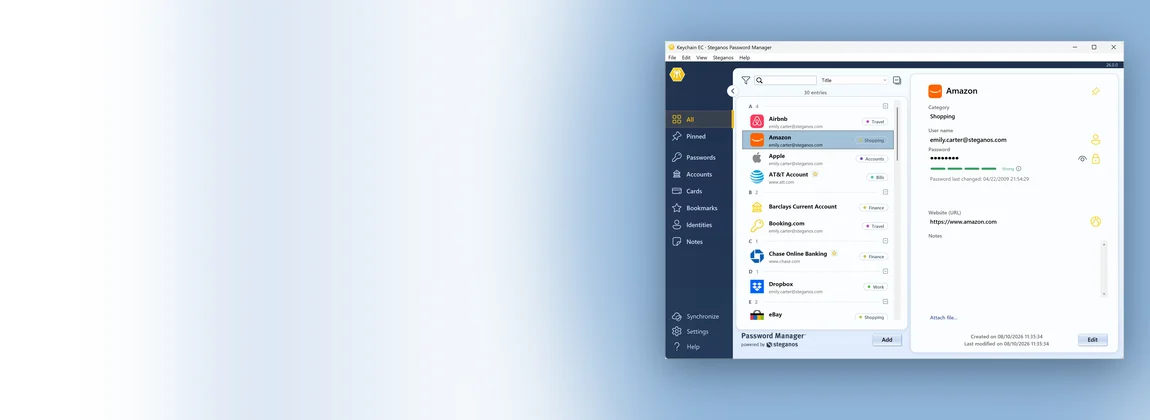
Moving from LastPass to Steganos Password Manager
A LastPass export even takes the folders with it.
Which header row the import expects and how the groups become categories.
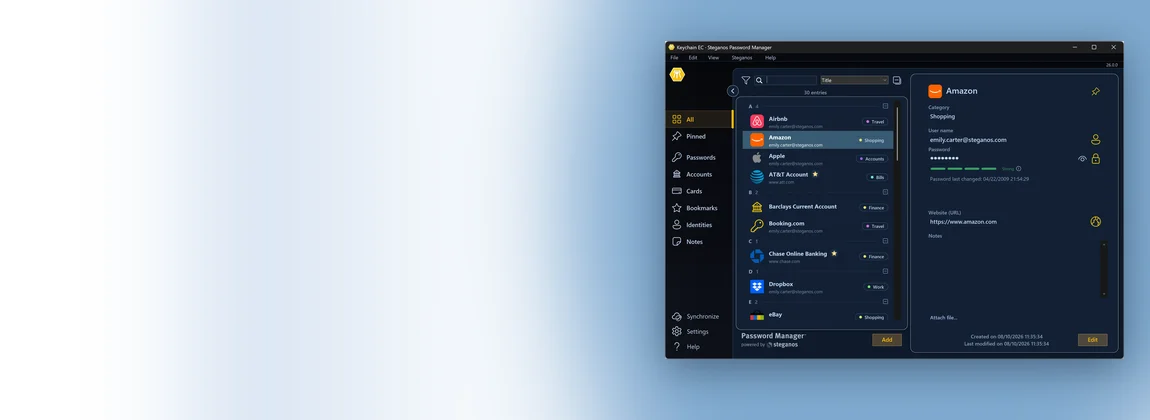
Moving from 1Password to Steganos Password Manager
A 1Password export brings titles, addresses, notes and tags with it.
Which header row the import expects and what gets left behind.
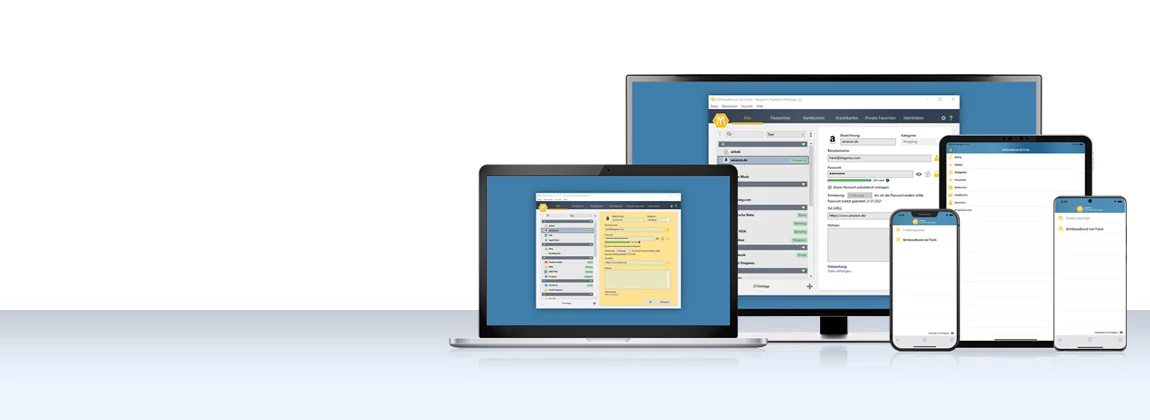
How to use the Password Manager on iOS and Android devices
Manage passwords securely on your phone and have them filled in automatically – setup on iPhone, iPad and Android devices.
Read on →